Email Templates
Administration > System Setup > Email Templates
An Email Templates option has been added to the System Setup menu in Administration. This option provides a central location for the email templates used to draft custom emails that are sent automatically when various events occur.
Templates formerly housed on the System Settings page (Administration > System Setup > System Settings) have been moved to this location, and templates for new events have been added:
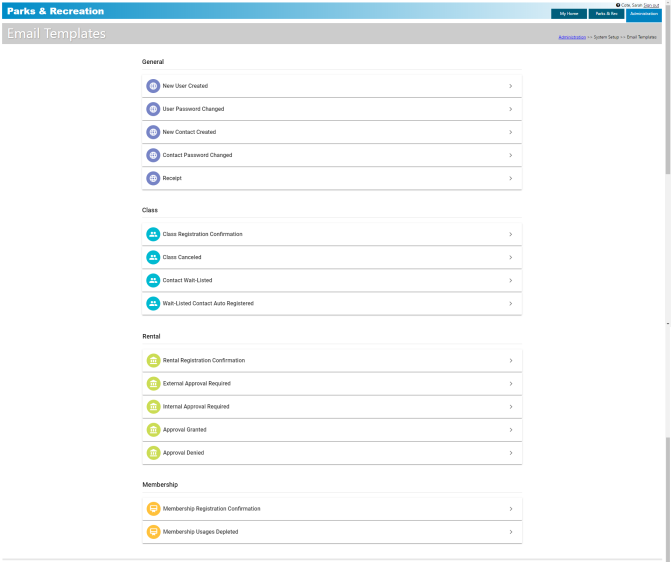
Email categories are General, Class, Rental and Membership. Templates within each category appear on individual cards.
The following templates are provided:
|
Category |
Template |
Recipient |
|---|---|---|
|
General
|
New User Created |
User |
|
User Password Changed |
User |
|
|
New Contact Created |
Contact |
|
|
Contact Password Changed |
Contact |
|
|
Receipt |
Payer |
|
|
Class
|
Class Registration Confirmation |
Payer |
|
Class Canceled |
Payer |
|
|
Contact Wait-Listed |
Payer |
|
|
Wait-Listed Contact Auto Registered |
Payer |
|
|
Rental
|
Rental Registration Confirmation |
Payer |
|
External Approval Required |
Payer |
|
|
Internal Approval Required |
Payer |
|
|
Approval Granted |
Payer |
|
|
Approval Denied |
Payer |
|
|
Membership
|
Membership Registration Confirmation |
Payer |
|
Membership Usages Depleted |
Payer |
To set up or edit a template, click the chevron  on the far-right side of the card. A page containing the template opens:
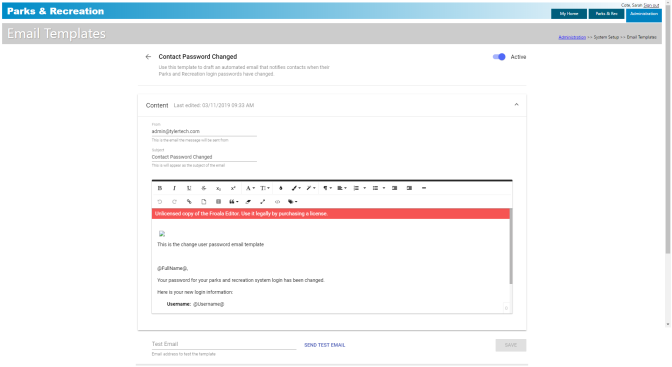
A summary of the type of event that triggers the template to be sent appears below the template title. Below the summary is the template itself, where you fill in the From and Subject fields and draft the content of the email.
Use the icons in the header of the text editor to format and stylize your text and add images and links. Click the Custom Tags icon to select from a drop-down of information placeholders used to populate emails linked to the template:
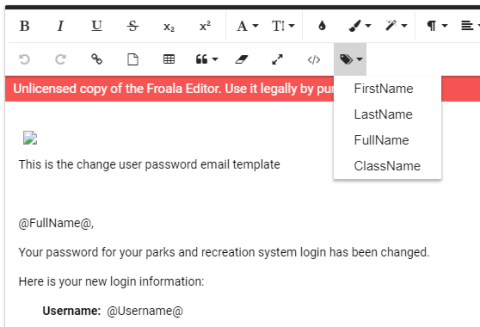
Any placeholder may appear multiple times in the template. Within the body of an email, only the items selected from the drop-down are replaced with system-generated text.
If you are setting up the Internal Approval Required template, an Additional Emails field is available below the template:
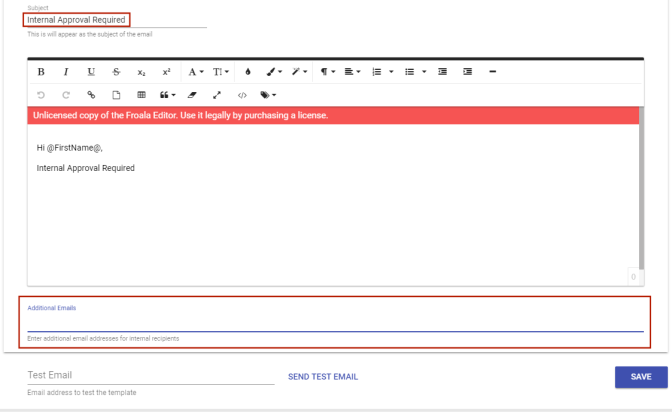
Use this field to enter the email addresses of back office personnel who should receive an email notifying them each time an event requiring internal approval occurs. This feature eliminates the need to navigate to a separate approvals page to search for internal approval requests.
Note: If a registration requires internal approval, the registrant does not receive a registration confirmation email until approval occurs.
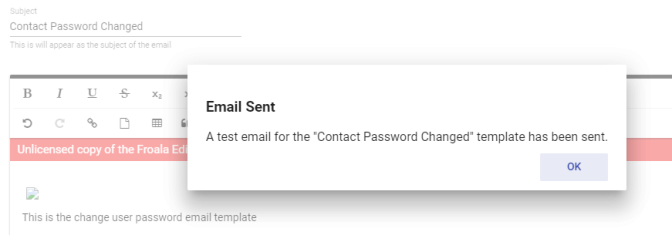
To review an actual email before finalizing the setup or edit, type the appropriate email address in the Test Email field below the email template, and click SEND TEST EMAIL. A confirmation pop-up appears to let you know the email has been sent:
Click the Active/Inactive toggle at the top-right of the page to make the template active or inactive:


To save the template, click the SAVE button below the template.